
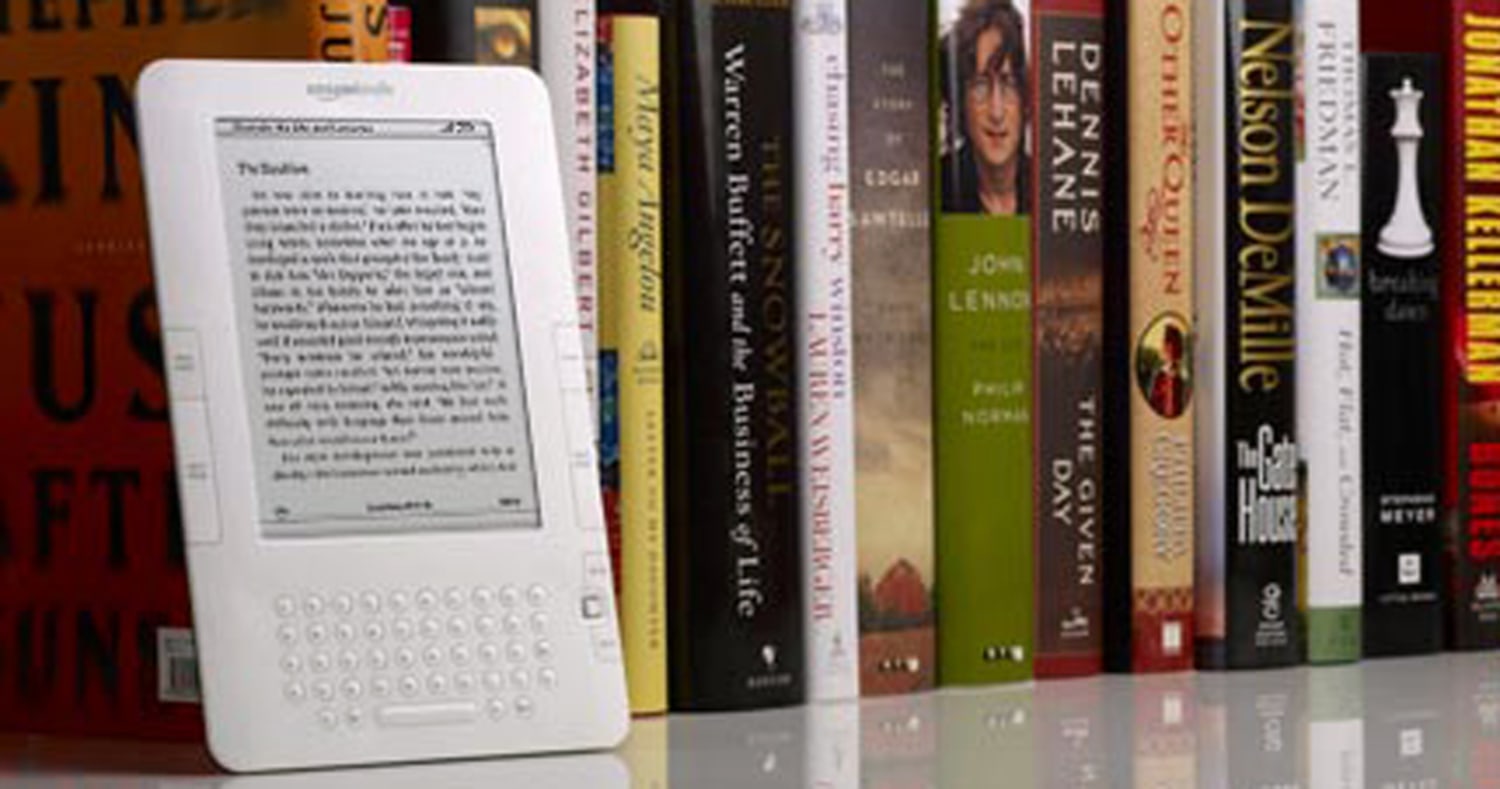
E-books on Kindle: A Convenient Way to Read
Kindle e-books make it easy to carry a personal library wherever you go. Whether you read on a Kindle e-reader, a phone, a tablet, or a computer, Amazon’s Kindle platform offers a wide range of digital books, from bestsellers and biographies to classics and independent publications.
What Is a Kindle E-book?
A Kindle e-book is a digital book designed for reading through Amazon’s Kindle service. You can read one on a Kindle device or with the free Kindle app on many smartphones, tablets, and computers. Depending on the title and your settings, reading progress, bookmarks, and notes may sync across compatible devices.
Kindle e-books are generally delivered through your Amazon account rather than as ordinary files that can be freely copied between devices. Availability and features can vary by title, country, device, and publisher.
How to Find and Get Kindle Books
You can browse Kindle books in the Kindle Store or through Amazon’s website and apps. Book listings typically show the price, description, author, reviews, and available formats. Many titles include a sample, so you can read part of a book before deciding whether to buy it.
Some Kindle books may also be available through subscription services, library lending programs, or promotional offers. These options depend on the book, your location, and the terms of the service. Check the listing for current availability and conditions.
Reading on a Kindle Device or App
Kindle e-readers use displays designed for reading and can be a comfortable choice for long sessions. The Kindle app offers more flexibility if you prefer to read on a device you already own. In either case, common reading tools include:
- Adjustable font size and, on many devices, font style
- Brightness and background settings
- Bookmarks, highlights, and notes
- Search and built-in dictionary features
- Reading progress indicators and chapter navigation
Exact features vary across devices, apps, and individual books. Some titles also include images, interactive elements, or enhanced layouts that may work differently from standard text-based e-books.
Reading Without an Internet Connection
After downloading a Kindle book to a supported device or app, you can usually read it without an internet connection. You’ll need to connect again to download new books or sync recent notes and reading progress. If you plan to travel, download the titles you want in advance and make sure they open on your device.
Sending Personal Documents to Kindle
Kindle also supports sending certain personal documents to your Kindle library or device. Supported file types and delivery options can change, so consult Amazon’s current instructions before sending a document. For books or documents obtained outside Amazon, make sure you have the right to use and transfer the material.
Choosing Between E-books and Print
E-books offer portability, adjustable text, and quick access to new reading material. Print books may be preferable for readers who enjoy physical pages, collect editions, or want to lend a book easily. Some Kindle titles may not match their print editions exactly, and features such as page numbering can differ. Previewing a sample can help you decide whether a particular edition suits your needs.
Build a Reading Routine That Works for You
Kindle makes it simple to keep several books close at hand, but the best reading setup is the one that fits your habits. Explore samples, compare editions, and adjust display settings for comfort. Whether you read on a dedicated e-reader or an app, Kindle e-books can make it easier to discover new authors and enjoy books wherever your day takes you.
8 Essential Tips for Enhancing Your Kindle E-Book Experience
- Adjust font size for comfortable reading.
- Use Word Wise to simplify difficult words.
- Highlight passages you may want to revisit.
- Add bookmarks to save your place.
- Download books before traveling offline.
- Try dark mode for low-light reading.
- Use the built-in dictionary for quick definitions.
- Check Kindle book samples before buying.
Adjust font size for comfortable reading.
Adjusting the font size on your Kindle can make reading more comfortable, especially during long sessions. Increase the text if it feels too small, or reduce it to fit more words on the screen. Try a few settings until you find one that’s easy to read without straining your eyes, and adjust it whenever your lighting or reading position changes.
Use Word Wise to simplify difficult words.
Use Word Wise to make challenging vocabulary easier to understand while you read on Kindle. When the feature is available, it displays brief definitions above difficult words, helping you follow the story without pausing to look them up. You can adjust how many hints appear, so the reading experience matches your vocabulary level and preference.
Highlight passages you may want to revisit.
Highlighting passages in Kindle e-books makes it easy to find meaningful quotes, useful ideas, or details you want to revisit later. Touch and hold a word, then adjust the selection to cover the passage and choose the highlight option; the exact steps may vary by device or app. Your highlights are saved with the book, so you can review them later without searching through every page.
Add bookmarks to save your place.
Add a bookmark to save your place in a Kindle e-book and return to it later without having to remember the page or chapter. Bookmarks are especially useful when you’re switching between books, taking a break, or want to revisit a passage. On most Kindle devices and apps, you can add or remove a bookmark using the bookmark icon or the reading menu; the exact steps may vary by device.
Download books before traveling offline.
Before traveling somewhere without reliable internet, download your Kindle books to your device or app while you’re still connected. This lets you keep reading on a plane, during a commute, or in areas with limited service. Open each book before you leave to make sure it’s downloaded and ready to read offline.
Try dark mode for low-light reading.
Try dark mode for low-light reading on Kindle. It switches the screen to a dark background with light text, which can feel more comfortable in a dim room and reduce screen glare. You can usually turn it on in your device’s display or quick settings; the exact steps depend on your Kindle model or app.
Use the built-in dictionary for quick definitions.
Use the built-in dictionary to look up unfamiliar words without leaving your Kindle e-book. Press and hold a word to see its definition, then return to your page and keep reading. It’s a quick, convenient way to build your vocabulary and understand the text as you go.
Check Kindle book samples before buying.
Before buying a Kindle book, download its sample to see whether the writing, subject, and formatting suit you. A sample lets you read the opening pages, check how the text looks on your device, and decide whether you want to continue. It’s a quick way to make a more informed choice before purchasing.
