
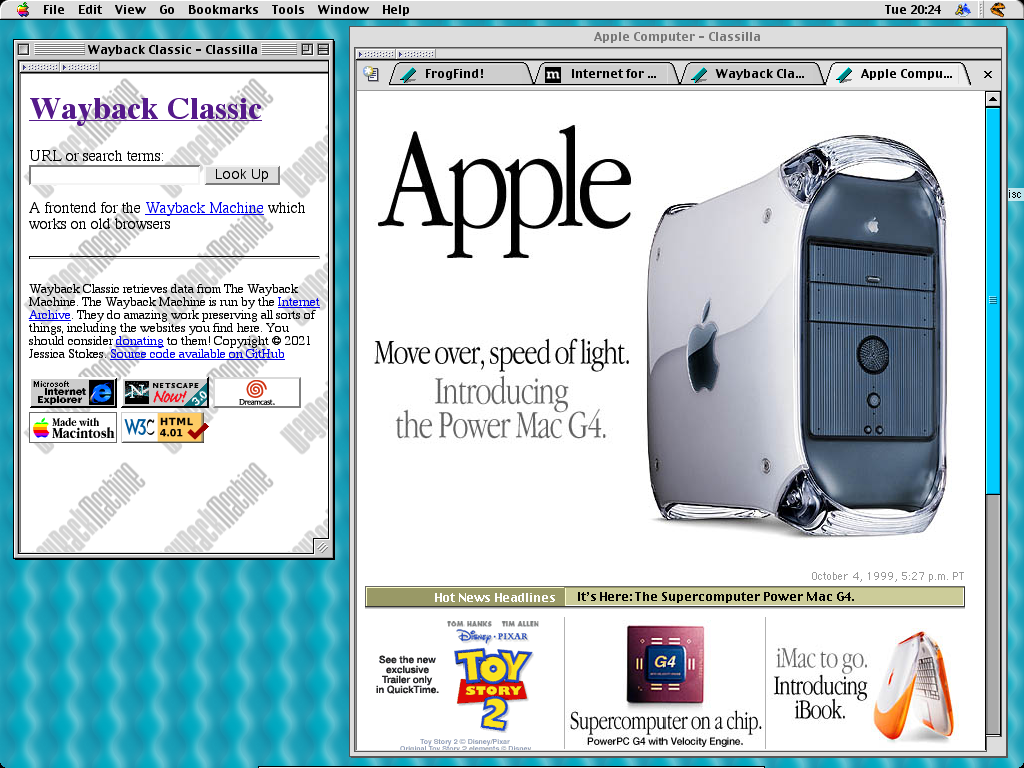
The Wayback Machine: Exploring the Archived Web
The Wayback Machine is a digital archive that lets people view snapshots of websites from the past. Operated by the Internet Archive, a nonprofit digital library, it has preserved billions of web pages and other online materials, making it possible to revisit parts of the internet that have changed or disappeared.
A Window into the Web’s Past
The Internet Archive began collecting web pages in 1996, and the Wayback Machine became publicly available in 2001. Its name evokes a fictional time-travel device: instead of traveling through time, visitors can enter a web address and explore available captures of that site from different dates.
Archived pages can reveal how a company, news organization, community, or personal website looked years ago. They can also help researchers study the evolution of online culture, design, language, and public information. Journalists and fact-checkers may use archived pages to review earlier versions of a site or locate material that is no longer available at its original address.
How to Use the Wayback Machine
To explore an archived site, visit web.archive.org and enter its URL. If the address has been captured, the Wayback Machine displays a timeline or calendar showing available snapshots. Choose a date to view the version saved around that time.
The “Save Page Now” feature can also request a new capture of a publicly accessible page. This may help preserve a page for future reference, although it does not guarantee that every element will be saved or remain available indefinitely.
What an Archived Page Can—and Can’t—Show
A snapshot is a record of what the archive was able to collect at a particular time, not necessarily a perfect copy of the original website. Images, videos, scripts, interactive features, and pages behind logins may be missing or may not work as they once did. Links can lead to other archived pages, current pages, or error messages, depending on what was captured.
Coverage is also uneven. Some websites have frequent captures, while others have only a few—or none at all. A missing page does not prove that it never existed. It may simply not have been collected, or it may have been unavailable to the archive when a crawl took place. Website owners can also request that certain material be excluded or removed under the Internet Archive’s policies.
A Useful Tool for Research
When using an archived page as a source, check the capture date and compare it with other evidence. A snapshot can help establish what appeared online at a given time, but it may not show the full context or confirm whether the information was accurate. For important research, cite the archived URL and the date of the capture, and consult additional sources when possible.
Preserving a Changing Internet
The Wayback Machine offers a practical way to explore the web’s history and recover information that might otherwise be lost. Its collection is not complete, but each preserved page contributes to a broader record of how people have shared ideas, news, and resources online. For anyone curious about the past—or trying to understand how the internet has changed—the Wayback Machine is a valuable place to start.
7 Tips for Using the Wayback Machine
- Enter a URL to view archived versions of a page.
- Use the calendar to pick a capture date.
- Try nearby dates if a snapshot won’t load.
- Check the URL carefully, including “www.” and subdomains.
- Use the Wayback Machine’s Save Page Now feature to archive a page.
- Some images, videos, or scripts may be missing from old snapshots.
- Archived pages may not reflect the original site perfectly.
Enter a URL to view archived versions of a page.
To explore a website’s history with the Wayback Machine, enter its URL in the search bar and browse the archived snapshots available for that address. Select a date from the calendar to view the page as it appeared at that time. Keep in mind that some snapshots may be incomplete, and not every page or feature will be available.
Use the calendar to pick a capture date.
Use the Wayback Machine’s calendar to choose a capture date and see how a website looked at a particular moment in the past. After entering a URL, select a year from the timeline, then choose a highlighted date on the calendar to open an archived snapshot. Dates with captures are marked, though the page may not include every image or feature from the original site.
Try nearby dates if a snapshot won’t load.
If a Wayback Machine snapshot won’t load, try selecting a nearby date on the calendar. The capture may be incomplete, or a file needed to display the page may be missing, while an earlier or later snapshot may work better. Nearby captures can also help you compare versions and find the information you’re looking for.
Check the URL carefully, including “www.” and subdomains.
When searching the Wayback Machine, check the URL carefully, including whether it uses “www.” and any subdomains. Addresses such as “example.com,” “www.example.com,” and “blog.example.com” may be treated as different sites, so an archived capture for one version may not appear under another. If your first search doesn’t find the page, try the other URL variations.
Use the Wayback Machine’s Save Page Now feature to archive a page.
Use the Wayback Machine’s “Save Page Now” feature to preserve a snapshot of a webpage for future reference. Enter the page’s URL at web.archive.org/save and submit it to request an archive capture. Once the process is complete, save the resulting archived link so you can revisit or share that version later. Captures may not include every image, file, or interactive feature, but saving a page can help keep its content accessible even if the original changes or disappears.
Some images, videos, or scripts may be missing from old snapshots.
When viewing an old snapshot in the Wayback Machine, you may notice that some images, videos, or interactive features are missing or don’t work as expected. This can happen because the archive didn’t capture every file on the original site, or because a page relied on scripts and services that are no longer available. The saved page can still offer a useful glimpse of the past, but it may not be a complete or fully functional copy of the original.
Archived pages may not reflect the original site perfectly.
Archived pages on the Wayback Machine may not look or work exactly like the original site. Some images, videos, fonts, or interactive features may be missing, and links may not lead to the pages visitors originally saw. These differences happen because the archive can only save the content it was able to capture at a particular time. Treat a snapshot as a helpful record, not a perfect copy, and check its capture date when using it for research.
